对于Manim的用户来说,创建富有表现力的文本动画是其核心功能之一。
最近,Manim的官方文档中悄然增加了两个新的动画类:TypeWithCursor 和 UntypeWithCursor。
它们为我们带来了带有光标的打字和删除效果,极大地丰富了文本动画的可能性。
本文将深入探讨这两个新动画类的特性和应用。
1. 动画概要
TypeWithCursor和UntypeWithCursor 的核心作用是模拟真实的打字和删除文本的过程。
相比于Manim中已有的Write和UnWrite等动画,它们最大的特点是引入了**“光标”**这一视觉元素,使得动画效果更加生动和贴近现实。
TypeWithCursor 类似于 AddTextLetterByLetter,可以逐个字符地显示文本,并在当前输入的最后一个字符后面显示一个光标。
这非常适合用于以下场景:
- 代码演示: 在教学视频或技术分享中,模拟实时编写代码的过程,让观众更清晰地看到代码的输入流程。
- 对话模拟: 模拟聊天对话框、终端输入等场景,增强动画的代入感。
- 逐字稿展示: 配合旁白,以打字机的方式逐字显示字幕或关键信息,引导观众的阅读节奏。
UntypeWithCursor 则与TypeWithCursor相反,它类似于RemoveTextLetterByLetter,可以逐个字符地删除文本,并且光标会跟随删除的进度移动。
其应用场景包括:
- 文本修正: 模拟删除并修改错误文本的过程,可以用于展示“纠错”或“优化”的概念。
- 信息擦除: 动态地擦除屏幕上的信息,为新的内容腾出空间。
- 倒计时效果: 通过删除数字来实现倒计时的视觉效果。
这两个类的主要参数类似:
| 参数名称 | 类型 | 说明 | |
|---|---|---|---|
| time_per_char | float | 字母出现的频率 | |
| cursor | VMobject | None | 游标对象 |
| buff | float | 控制光标在最后添加的字母右侧的距离。 | |
| keep_cursor_y | bool | 光标的 y 坐标设置是否为文本的中心,并在整个动画中保持不变 | |
| leave_cursor_on | bool | 是否在动画后显示光标 |
需要注意的是:目前这两个动画类仅支持对Text对象进行操作,暂时还不支持MathTex。
2. 使用示例
下面,我们将通过两个实际的应用场景,来展示TypeWithCursor和UntypeWithCursor的使用方法。
2.1. 模拟代码输入与修正
这个例子将模拟一个在终端中输入Python代码,然后发现错误并进行修正的过程。
我们将使用TypeWithCursor来输入代码,然后用UntypeWithCursor删除错误部分,最后再用TypeWithCursor输入正确的代码。
1 | from manim import * |
在这个例子中,我们自定义了一个白色的细长矩形作为光标。
通过time_per_char参数,我们控制了打字和删除的速度,使得动画更具节奏感。
同时,通过对Text对象进行切片,我们精确地控制了需要删除和重新输入的文本部分。
2.2. 动态标题展示
这个例子将展示如何使用TypeWithCursor和UntypeWithCursor来制作一个动态的、引人注目的标题。
我们将先用打字效果展示一个标题,然后将其删除,再展示另一个标题,并在动画间隙播放光标闪烁动画。
1 | from manim import * |
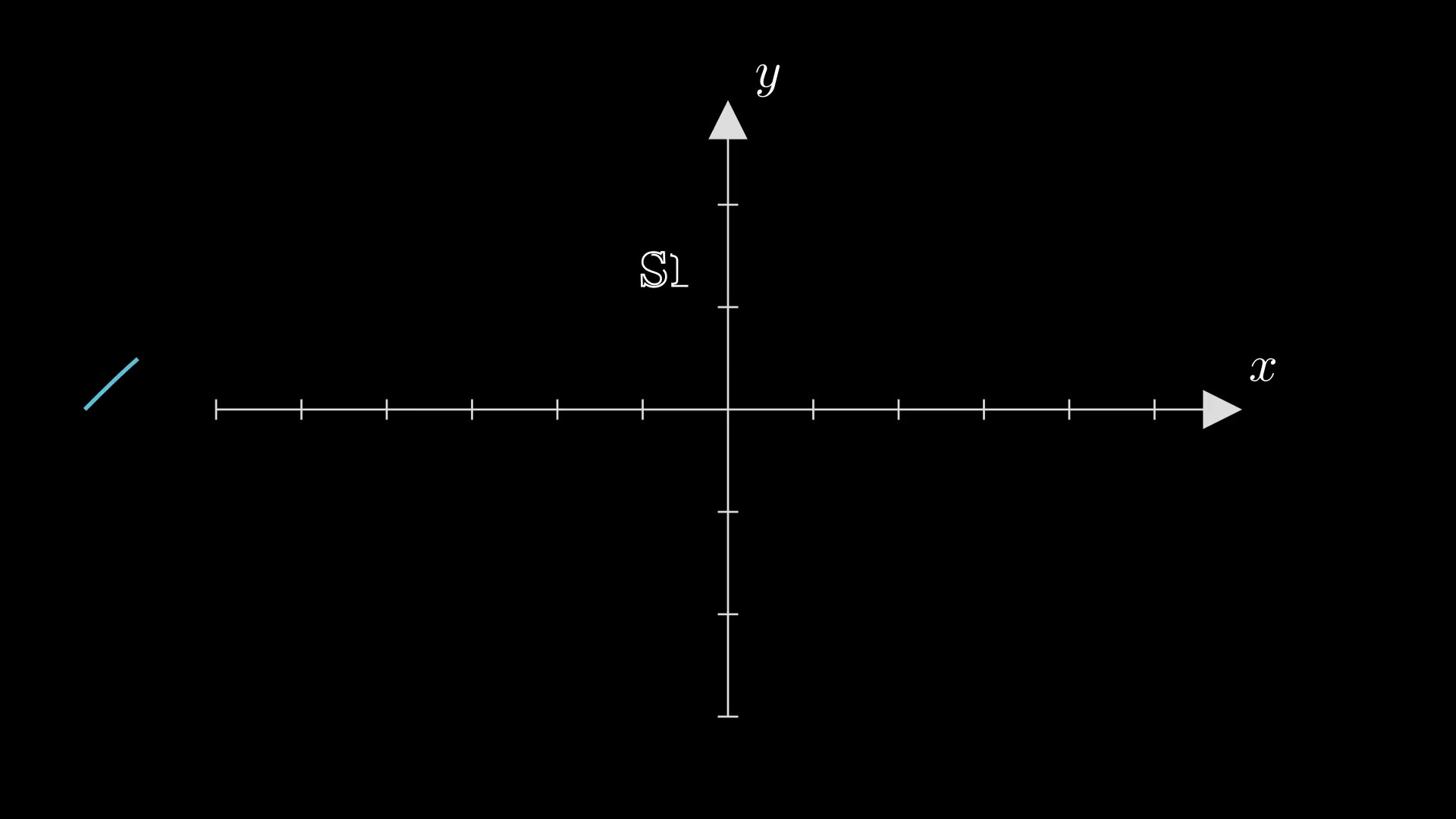
在这个例子中,我们使用了一个黄色的Line作为光标,并通过Blink动画使其闪烁。
在动画中,我们设置keep_cursor_y=True来确保光标在y轴方向上保持稳定,这在处理多行文本时非常有用。
我们还通过调整buff参数增大了光标和文字的间距,并通过leave_cursor_on=True让光标在删除动画后依然停留在屏幕上,为接下来的输入动画做好了衔接。